West Virginia School of Osteopathic Medicine
Accessing Azure Virtual Desktops
Step 1
Verify that you have the Remote Desktop App installed. Search for “Remote Desktop” and you should see the application.
Image
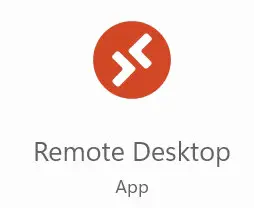
If the Remote Desktop App is not installed on your machine, you’ll need to download and install it. Download the software.
Step 2
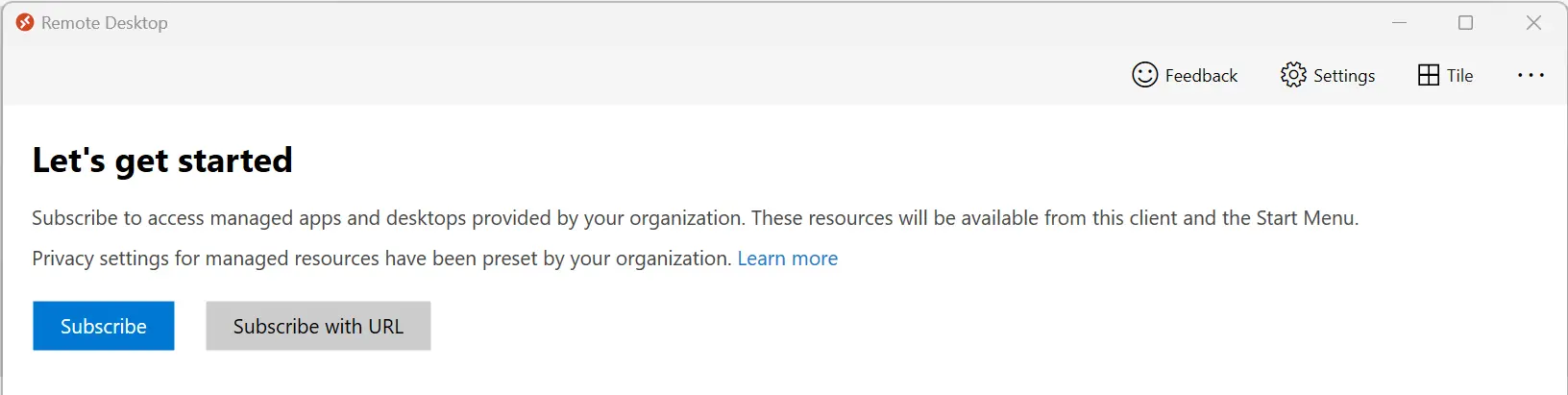
Launch the app and click the blue subscribe button.
Image
Step 3
Sign in with your full osteo.wvsom.edu email address and password then authenticate with DUO.
Step 4
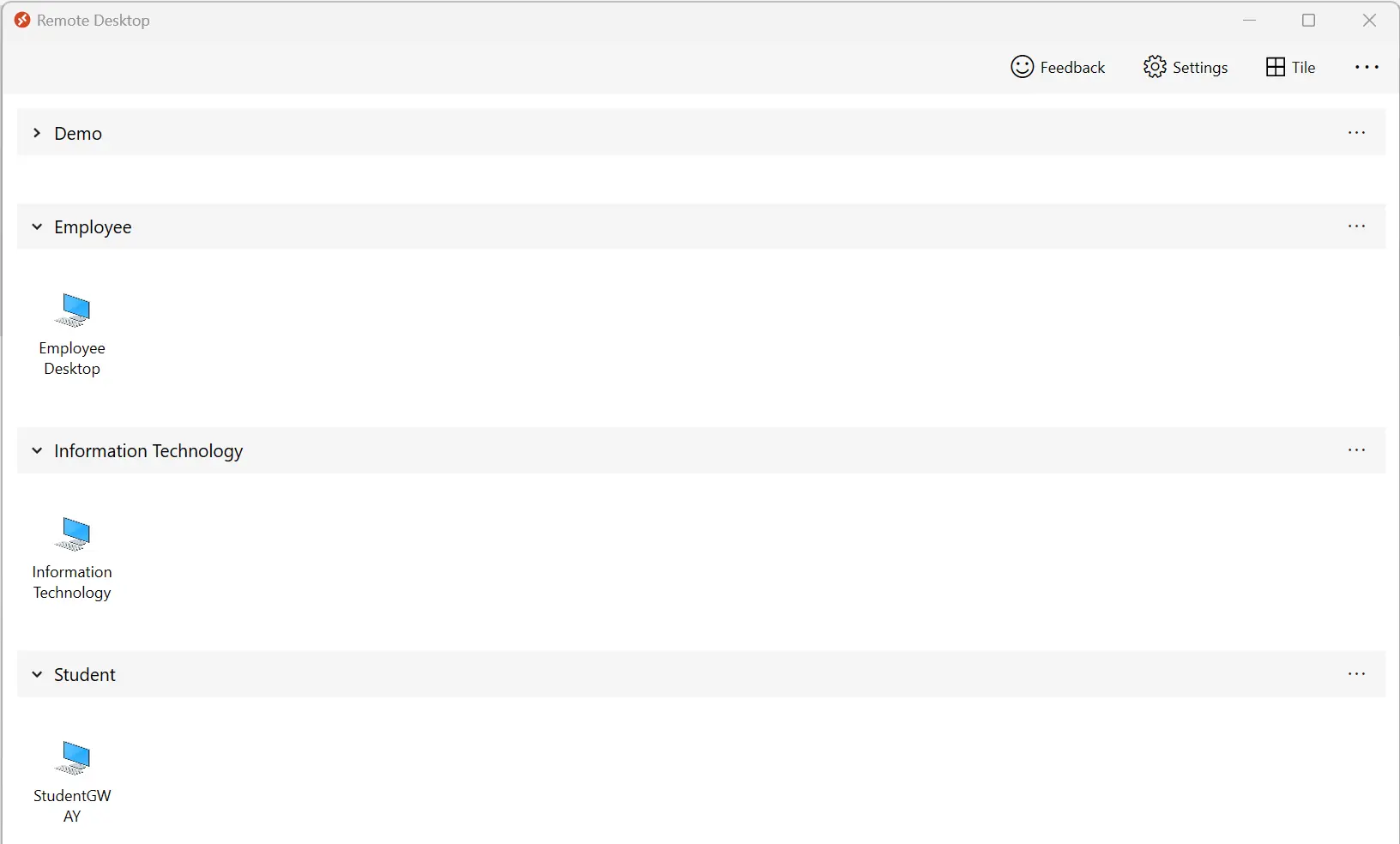
Once signed in the assigned desktops should appear. Double Click the icon for the correct desktop.
Image
Step 5
A password prompt will appear. Enter your password, click okay and the virtual desktop will be loaded.
Step 6
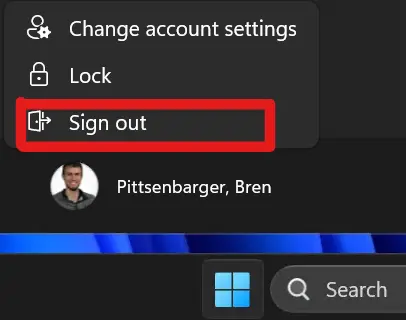
Reminder! When you have finished your work, be sure to click start, your name, and sign out!
Image